
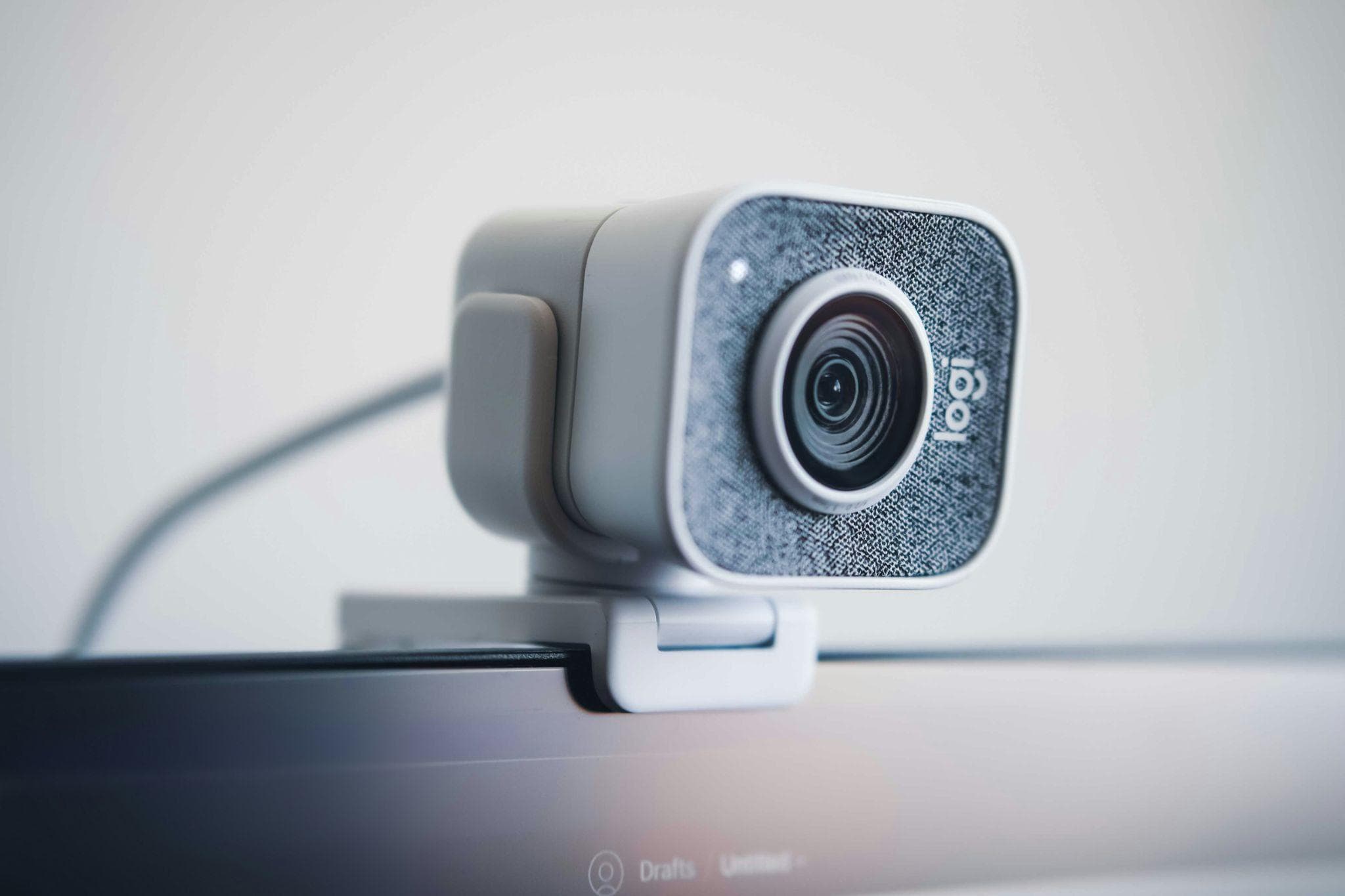
Have you ever been shocked by how bad you can look on camera? In your bathroom mirror, you look fine, then you open a video call in a dim room, and suddenly you look like a blurry ghost. Everyone else is bright and clear, and you are just a dark shape with eyes.
It feels personal, but most of the time, it is not your face, and it is not even that your webcam is terrible. It is the light, and the way the camera is trying (and failing) to handle it.
The good news is simple. You can usually fix low-light webcam problems with a few small changes, long before you think about buying expensive gear.
Why Webcams Struggle in the Dark
Webcams are tiny. Tiny sensors, tiny lenses, tiny space for light to get in. In good daylight, they can do a solid job because there is plenty of light hitting that sensor. In low light, they start guessing and stretching.
When there is not enough light, the camera boosts the signal. That is like turning the volume up on a quiet song. You hear more, but you also hear all the fuzz and hiss in the background. On a webcam, that “hiss” turns into grainy dots, flickering patches, and mushy details on your face.
It also has to decide what to expose correctly. That is why you sometimes look like you are giving a TEDx Talk from inside a cave.
So if you want better video, you do not start by hunting for secret settings. You start by fixing what the camera sees.
Fix the Light First
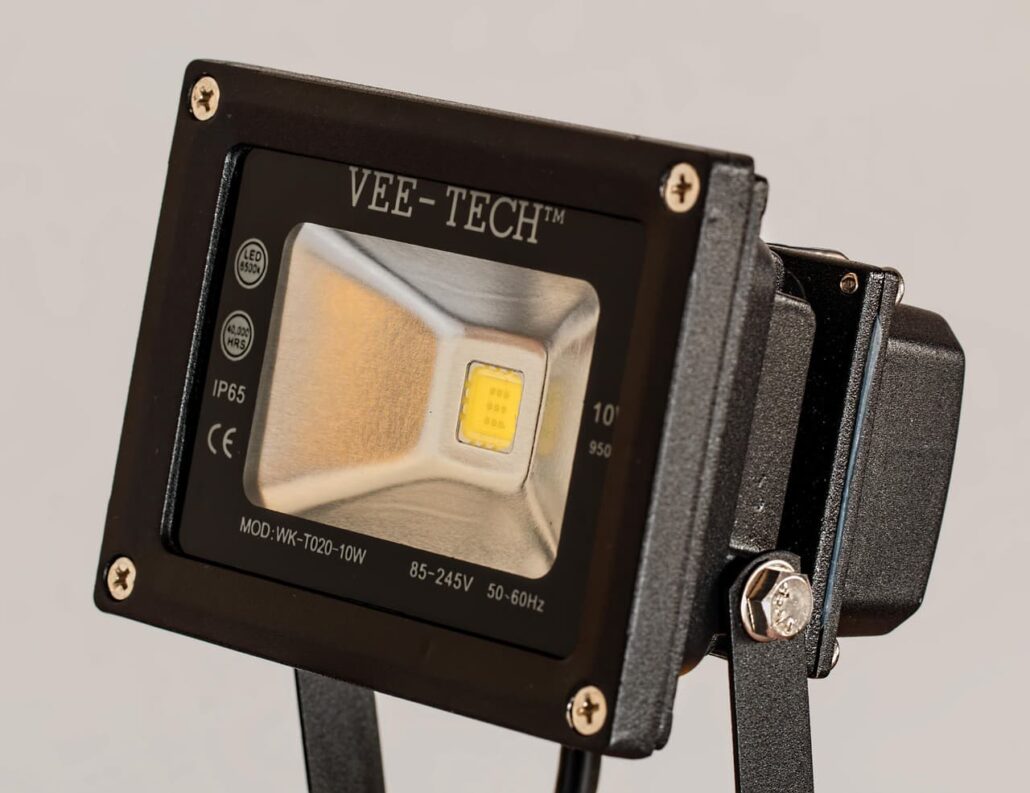
You know how standing under one harsh ceiling light makes everyone look tired. Webcams feel the same way. They do best when the main light is in front of you, not above you, and definitely not behind you.
If you can, turn your setup so you face a window during the day. Natural light is usually soft and flattering, even on cloudy days. It gives the camera enough brightness to keep noise low and colours closer to reality.
At night, or if the window option is not possible, use a lamp in front of you, slightly above eye level.
Let Your Screen Work for You
Your screen is not just for Zoom windows and slides. It can also act like a soft light. In a very dark room, turning up your monitor brightness a bit and opening a light colored page can throw some gentle light back onto your face.
Using dark mode looks cool, but it does not help your webcam in low light. A full screen of white or light grey gives the camera more to work with than a mostly black background. During calls, you might switch apps out of dark mode just for this reason.
Of course, do not blast your eyes. If the screen is so bright that you are squinting, you will feel uncomfortable and probably look washed out. Aim for a level where your face is clearly lit, but you can still relax.
Clean Up the Scene the Camera Sees
Low-light problems often get worse when there are mixed lights and busy backgrounds. Maybe you have a warm yellow lamp, a cold blue overhead light, and the icy glow of the monitor all at once. The camera then has to guess what “normal” looks like, and it tends to guess wrong.
If possible, stick to one type of light in the room. All warm or all cool, not a random mix. That helps your skin tone look more natural. Many webcam apps have a “white balance” setting. If your colours keep changing while you move, try turning off auto and locking it once your lighting looks okay. That keeps your face from going orange one second and grey the next.
Background matters too. A bright window behind you, even with curtains, throws the camera off. It will lower the overall exposure to sunlight, leaving your face dark. Closing blinds, turning off that one bright light behind you, or moving your light source to the front can make more of a difference than people expect. A simple, not too bright background lets the camera focus on you.
Adjust Your Webcam Settings, But Just Enough
Once your lighting is halfway reasonable, you can look at the webcam settings. You do not need to be a camera pro to make small improvements.
Most webcams have an exposure control. In auto mode, the camera will try to guess the best brightness. In very dark rooms, it might drag the shutter speed too low, which is why your hand looks like a blur when you wave.
Lowering the exposure slightly or switching from 1080p to 720p can sometimes give you a smoother, cleaner image in low light because the camera has less work to do on each frame.